Ground floor
Walk into the office where your AI works.
Each desk is a kind of work: leads, appointments, documents, payments. Click a desk to open it.
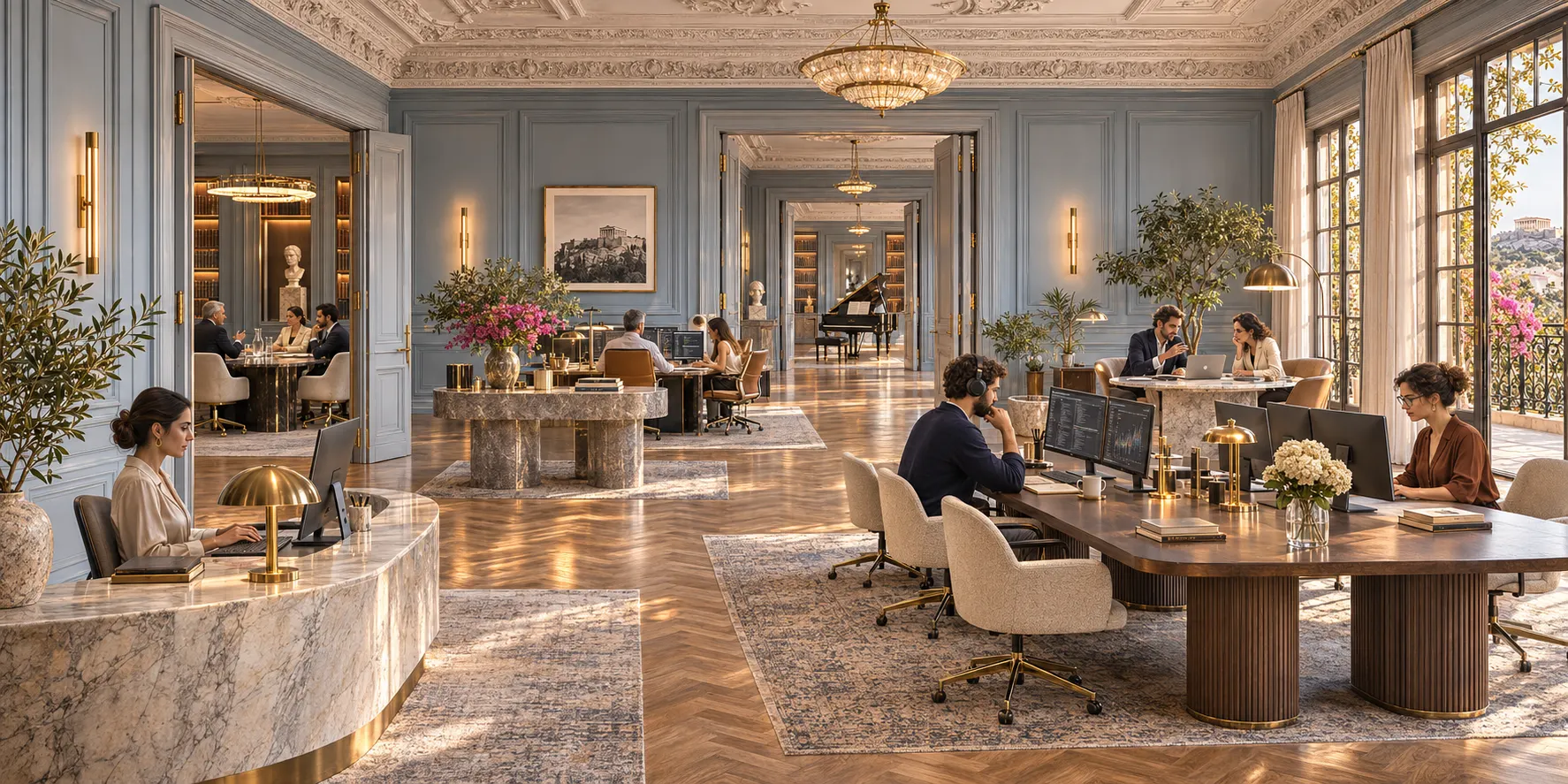
Swipe the room
Switched on
Leads desk
New enquiries arrive at this desk.
Athens ResidenceOne of three built-in rooms. An example office: yours shows the desks your organization has switched on, and only those.
A list tells you what you bought. An office shows you who does what.
AI capabilities usually sit in technical menus and settings pages, so people do not know who or what helps them with which work. The Virtual Office puts every kind of work at a desk, in a room you can look around.
An office
- Leads
- Appointments
- Offers / CRM
- Documents
- E-Invoicing
- POS Payments
- Customer Loyalty
Floor 1 · Office floor
Every desk is a kind of work. Departments keep them in order.
Every desk your organization has switched on is on the floor, as a labelled marker on the picture. Click one to open it. Choose a department to see its desks. You can search the office, and pin the desks you use to My desk.
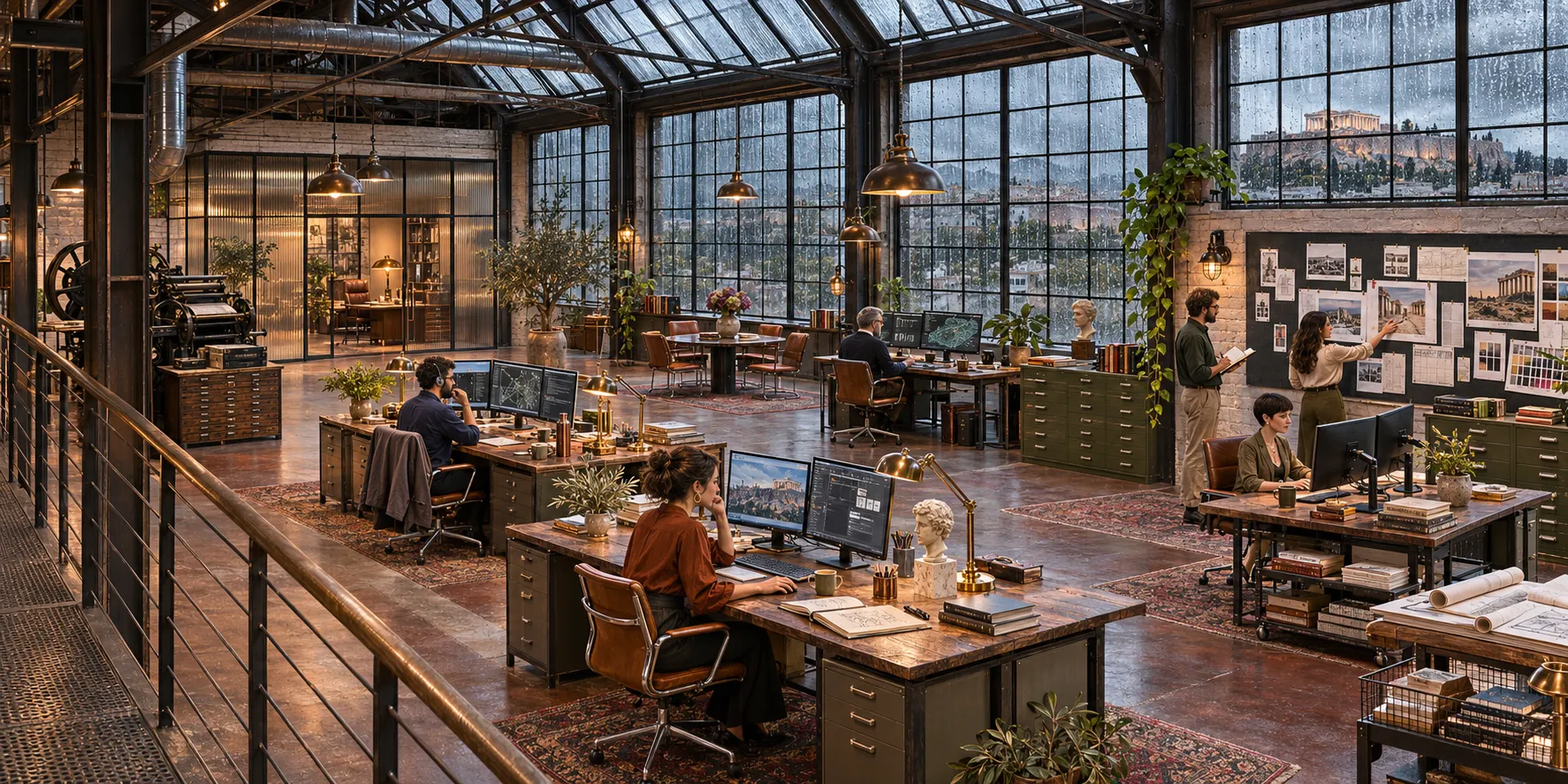 DocumentsLeadsAppointmentsE-InvoicingOffers / CRMPOS Payments
Swipe the room
The Print WorksDepartments in the product: Commercial, Finance, Data, Security and Mobile. The desks and where they sit here are an example.
From first enquiry to returning customer, on one line.
When two or more of these desks are on, your customer journey runs under the picture. A step lights up for each desk that is on, so you can see what is covered and what is still open.
Lead
Desk on
Candidate
Not set up
Appointment
Desk on
Sale
Desk on
Document
Desk on
Payment
Not set up
Loyalty
Not set up
Floor 2 · The rooms
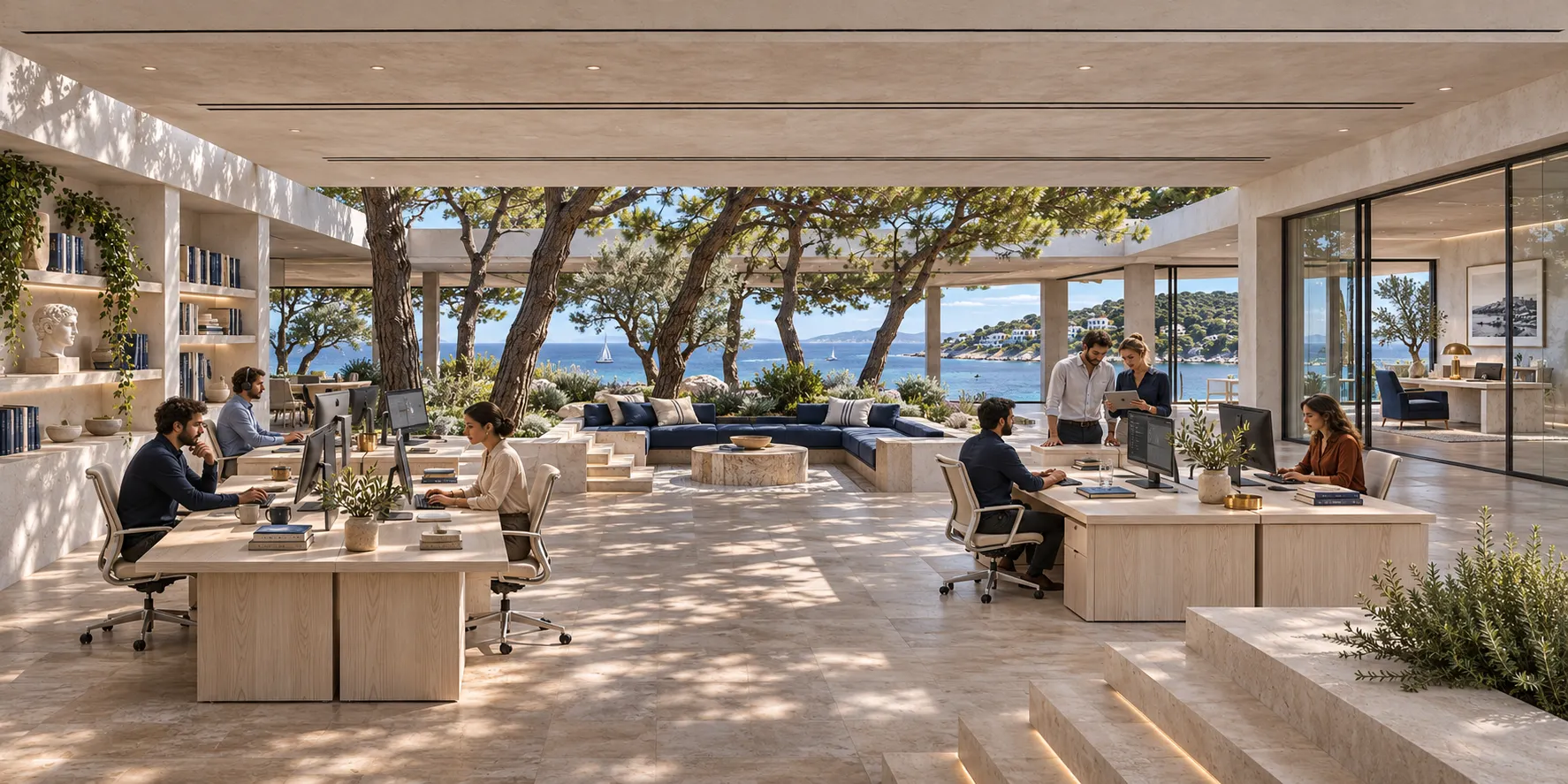
Three rooms are ready when you arrive.
Floor 3 · Your own office
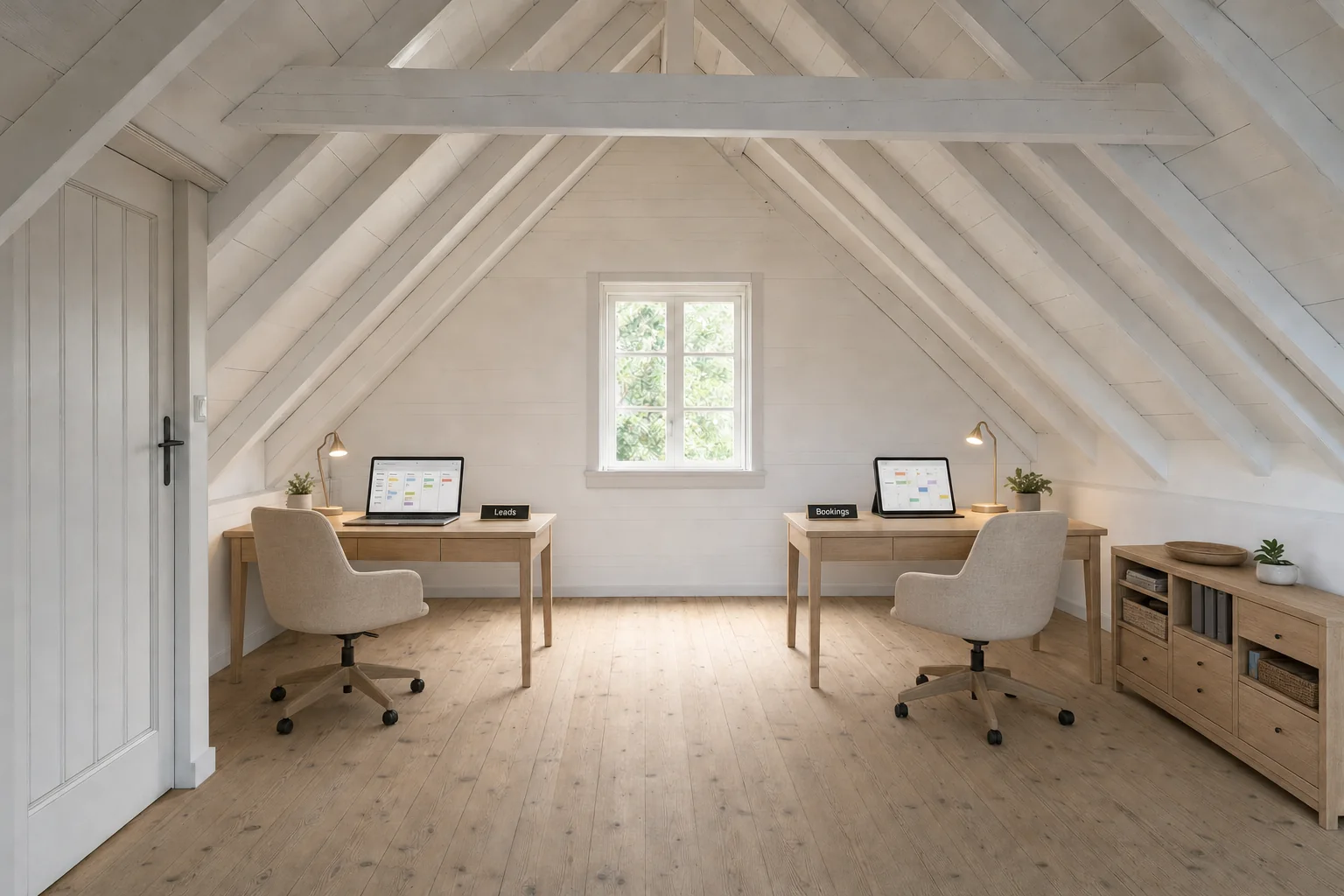
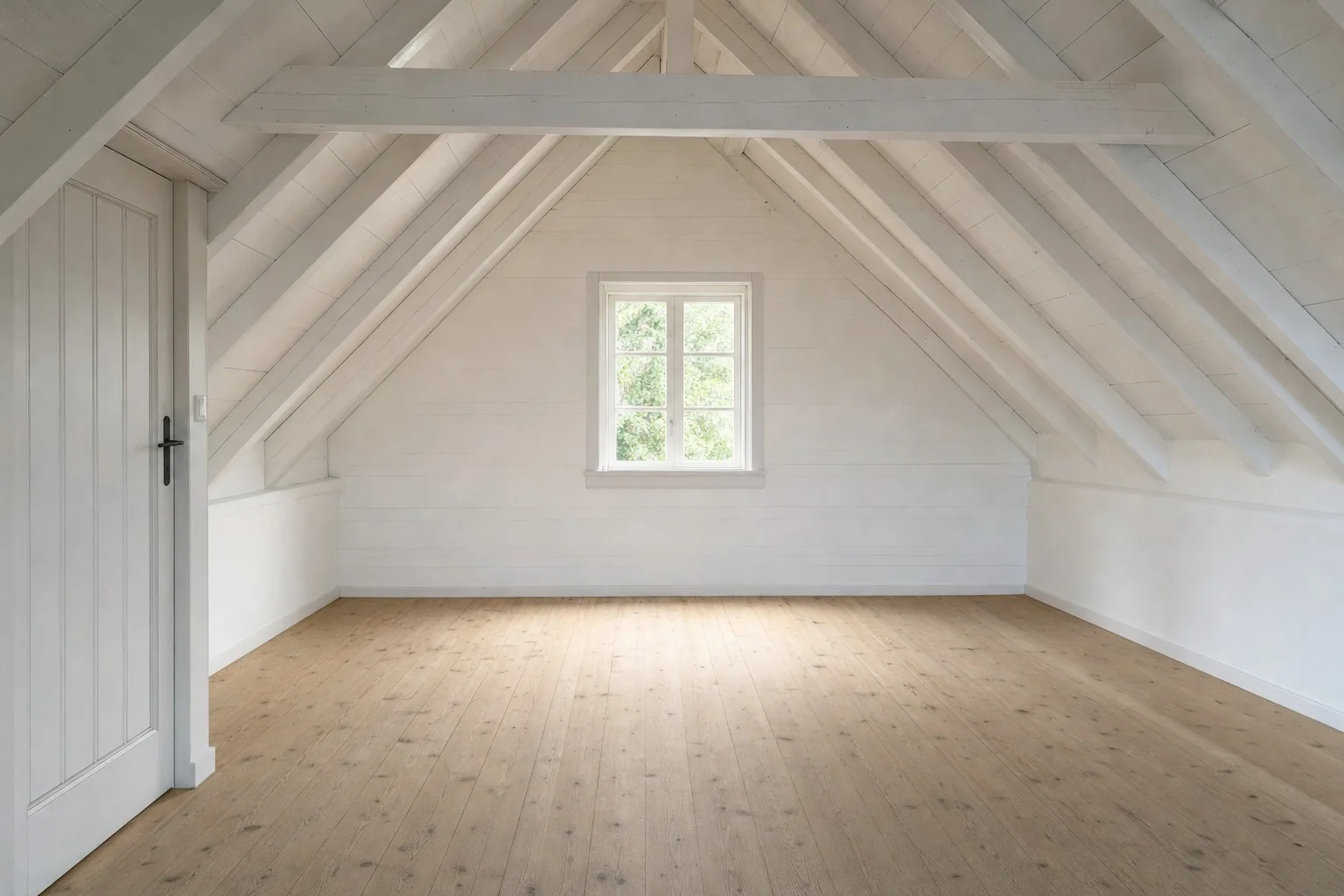 A room photoIts Virtual Office
An example: a sample room photo and the office generated from it. When you add a photo, the picture keeps the room’s viewpoint, walls and light.
Turn a photo of your premises into your Virtual Office.
An administrator describes the office, adds photos of the real room and lets the AI paint it, aiming for a readable sign on each desk. Nothing goes live until a person approves it.
- Name the office and its purpose
- Choose the departments and desks
- Describe the ideal office: space, mood and materials
- Add photos of your real office, if you wish
- Generate the picture
- Review it: approve, try again or reject
- Confirm where each desk sits, then publish
For administrators. We switch it on for your organization. Each picture is paid from your organization’s credits, and the wizard says so before you generate.
Floor 4 · Team room and My desk
Meet the digital employees.
The Team room shows who is on duty. Open a digital employee to read what they do and what they will never do, then start a conversation.
- On duty
- Off duty
- Available for setup
What I do
The work this digital employee is set up to do in your organization.
What I will never do
The limits this digital employee works within, stated in plain words.
Today the Team room is open to organization administrators who have the Sales team.
Keep your own desks close.
Pin the desks you use. They wait for you on My desk, a study of your own, next to a way to meet the team.
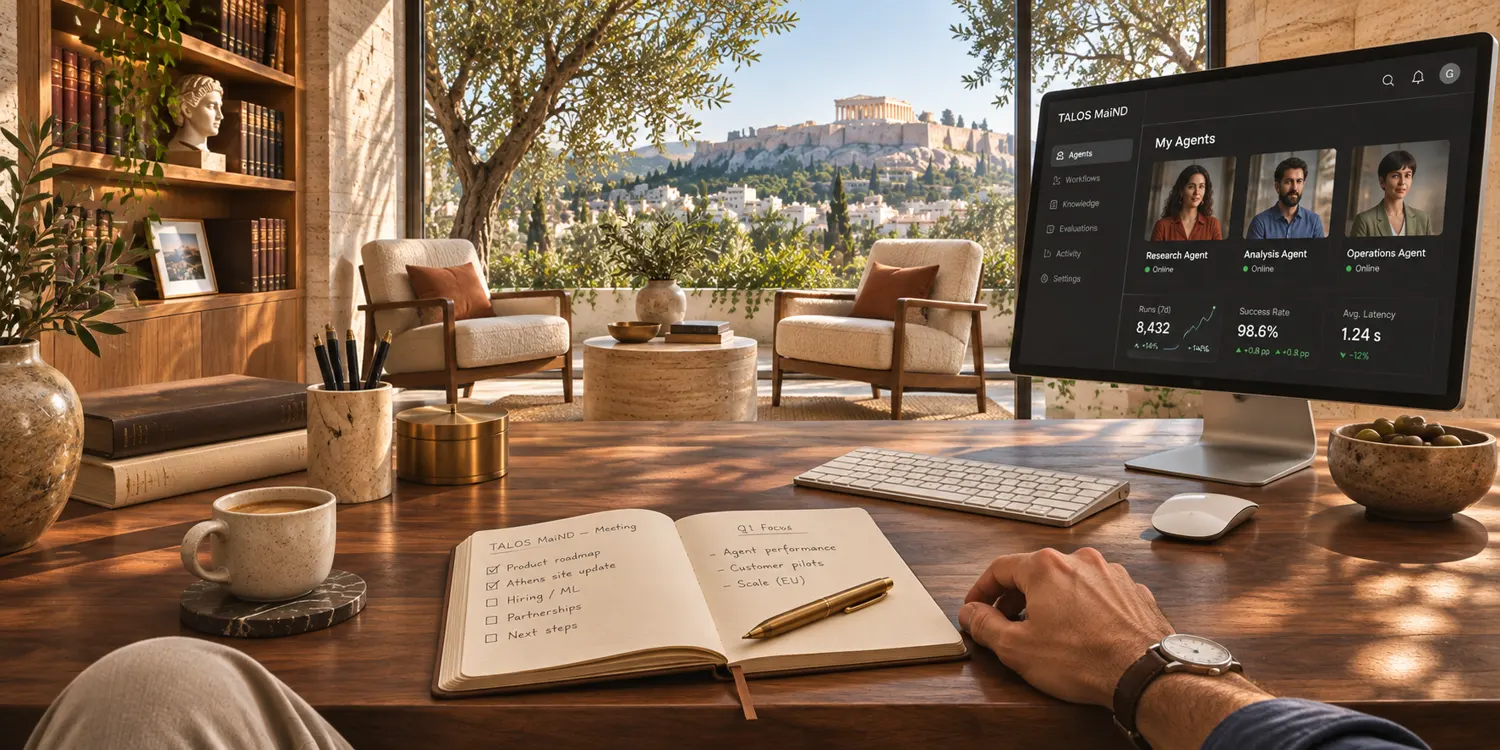
My deskThe study that goes with the Athens Residence. The screen in the painting is part of the picture.
People stay in charge.
Limits are written down.
Each digital employee’s profile states what they will never do.
A person approves.
Digital employees can work supervised, so their actions wait for a person’s approval. In a custom office, a person confirms the picture and where every desk sits.
Administrators publish.
Generating a picture, approving it and publishing an office are for administrators only.
Coming · designed, not built yet
What we are working on next.
- A face for every desk. Each desk shows the digital employee who works it.
- The Team room for everyone. All staff, all teams.
- Today with my AI team. One list of the work prepared for you, to approve, edit or reject.
Questions people ask.
What do we need to use it?
A Talos Mind organization with desks or digital employees switched on. The Virtual Office is part of the Talos Mind console.
Can it look like our real office?
Yes. An administrator can turn photos of your premises into your Virtual Office. We switch this on for your organization, and each picture is paid from your credits.
Does the AI act on its own?
Only as far as you allow. Digital employees work supervised by default, so their actions wait for a person’s approval. Each one states what it will never do, and publishing an office is for administrators.
Can all staff use the Team room?
Not yet. Today it is for organization administrators who have the Sales team. Wider access is coming.
Does it work on phones, and in our language?
Today it runs in desktop browsers, in English.
What does it cost, and can we try it?
There is no public price or trial. Book a demo: we will show it working and talk about your case.
Reception
See it working. Book a demo.
In the demo you will see
- The Office floor: desks on the picture, by department, with the customer journey
- The Team room: a digital employee’s profile and a conversation
- My desk: pinning desks and searching the office
- Your own office from a photo, from description to publishing
Part of the Talos Mind console · Desktop browsers · English